Tuesday, 21 June 2016

What’s new in C# 6.0? - Expression-bodied function

C# 6.0 brought another great new feature named “Expression-bodied function members” along with Visual Studio 2015 and .NET 4.6. If you didn’t try yet the preview version of the new IDE, go and grab it to get your hands dirty with the new features before it actually releases.

Expression-bodied function members allow properties, methods, operators and other function members to have bodies as lambda like expressions instead of statement blocks. Thus reducing lines of codes and clear view of the expressions.

Now in C# 6.0, instead of writing the whole property body using getters/setters, you can now just use the lambda arrow (“=>”) to return values. For example, the below code returns the string “Kunal Chowdhury” when you access the property “New Name”. Remember that, in this case you don’t have to write the “return” keyword. The lambda arrow (=>) will do the same for you internally.

What’s new in C# 6.0? - Expression-bodied function (www.kunal-chowdhury.com)


Similar to properties, you can also write expressions for methods/functions which returns value to the caller. For example, the below code will return sub of the parameters when you call the “NewSum” method.

What’s new in C# 6.0? - Expression-bodied function (www.kunal-chowdhury.com)


Here is another example to show you how you can use the expression-bodied function members while declaring the methods. Please note that the effect is exactly the same as if the methods had a block body with a single return statement.


What’s new in C# 6.0? - Expression-bodied function (www.kunal-chowdhury.com)


Not only returning methods, you can use the feature in void returning methods, as well as Task returning async methods too. The lambda arrow syntax (“=>”) still applies but the expression following the arrow must be a statement expression (just as is the rule for lambdas):

What’s new in C# 6.0? - Expression-bodied function (www.kunal-chowdhury.com)


Though it is still not much clear on what additional benefit it will provide to us, but definitely it will reduce some codes, brackets etc. and give us a clean code. What additional benefits you think? Drop a line and share with us. Whatever the case, the new features are really very exciting. Isn’t it? Which feature you liked the most?

Wednesday, 4 May 2016

Introduction to Entity Framework

ADO.NET Entity Framework is an Object/Relational Mapping (ORM) framework that enables developers to work with relational database. It enabling developers to deal with data as objects and properties.Using the Entity Framework, developers issue queries using LINQ, then retrieve and manipulate data as strongly typed objects using C# or VB.Net.

The Entity Framework’s ORM implementation also provides services like change tracking, identity resolution, lazy loading, and query translation so that developers can focus on their application-specific business logic rather than the data access fundamentals. ADO.NET Entity Framework is targeted for developing Enterprise applications which can support MS SQL databases as well as other databases like as Oracle, DB2, MySql and many more. To learn entity framework first we need to know what is orm. I am going to give the overview of orm.

What is O/RM?


O/RM is an acronym that stands for object/relational mapping. Basically, an O/RM framework is used to persist model objects in a relational database and retrieve them. It uses metadata information to interface with the database. This way, your data-layer code knows nothing about the database structure. The O/RM tool becomes middleware that completely hides the complexity.

The heart of O/RM is the mapping—the mapping technique is what binds the object and relational worlds. By mapping, you express how a class and its properties are related to one or more tables in the database. This information is used by the O/RM tool’s engine to dynamically build SQL code that retrieves data and transforms it into objects. Similarly, by tracking changes to objects’ properties, it can use mapping data to send updates back to the database. The mapping information is generally expressed as an XML file. As an alternative, some O/RM tools use attributes on the classes and their properties to maintain mapping data.

Advantage of Entity Framework


  1. Productivity


    Entity Framework can take up to 35 percent of the entire application code. It make the developer’s life easier than ever. In spite of its limitations, the designer integrated into Visual Studio dramatically simplifies the mapping process.


  2. Maintainability


    Since you have the fewer lines of code to fetch data from database,the fewer lines of code you have to maintain. This is particularly true in the big projects.


  3. Performance


    The complexity of O/RM introduces an obvious slowdown in performance. In entity framework first request to fetch data is little bit slow but after that is fast to fetch data from database.

Entity Framework Models


Microsoft’s Entity Framework evolved from a methodology known as Entity Relationship Modeling (ERM). An ERM defines a schema of entities and their relationships with one another. Entities are not the same as objects. Entities define the schema of an object, but not its behavior. So, an entity is something like the schema of a table in your database, except that it describes the schema of your business objects. There are three models in the entity framework:


  1. CONCEPTUAL MODEL


    The conceptual model is where you describe the model classes. This file is split into two main sections: the first is a container that lists all the entities and the relationships that are managed by Entity Framework, and the second contains a detailed description of their structure.


  2. STORAGE MODEL


    The storage model is the equivalent of the conceptual model, but it describes the database organization. Not only is this file conceptually similar to the previous one, but it also uses the same XML nodes. Unlike the conceptual model, it isn’t possible to split this model into several physical files. The first section of this file lists all the tables, views, stored procedures, and foreign keys that are affected. The second section describes the items listed in the first node.

    Regarding tables and views, the columns and primary keys are described. When it comes to stored procedures, input and output parameters are described. The description of a foreign key contains information about the table involved, the cardinality, and the delete and update rules.


  3. MAPPING MODEL


    The mapping file is completely different. Its job isn’t to describe something but to compensate for the differences that exist between the two previous models. This is where the real magic of mapping happens: you map a class to one or multiple tables, map one table to one or multiple classes, define inheritance mapping, and map stored procedures for both updates and object retrieval.

    There is only one important node in this file: it associates the class to a table and can be repeated more than once to ensure that a class can be mapped against multiple tables, and vice versa. Like the storage description file and unlike the conceptual file, the mapping file can’t be split into multiple files.

How to Enable CORS in the ASP.NET Web API

Have you ever come across the following error:

Cross-origin Request Blocked. The same origin policy disallows reading the resource”.

Us to! It turns out, we get this error due to lack of CORS support while sharing resources. When we try to consume the Web API from origin A in a web application residing in origin B, we get the above error. To solve this error, we need to have a good understanding of CORS.

Although the purpose of this article is to learn the practical implementation of enabling CORS in the ASP.NET Web API, we will give a fair amount of weight to the theoretical concept also. CORS stands for Cross-Origin Resource-Sharing. For various security reasons user agents cannot share resources if they are not from the same origin. Various examples of user agents are browsers, HTML documents, scripts, and XMLHttpRequest.

Let us try to understand the concepts of Cross-Origin and Same-Origin. The concept of Origin was described by RF 6454. Two URLs would be called of the same origin, if they have:

  1. Scheme (http)

  2. Host(server)

  3. Port(8888)

The Origin consists of the Scheme, Host, and the Port number.

7217.picture_1_DJ

If two resources have the same combination of scheme, host, and port then they are considered of the same origin, else of the cross origin.  Let us consider the following two URI

http://abc.com:80 and http://xyz.com:8080 are not of the same origin since their host and port are not the same. For the security reason resource sharing between these two URL may be restricted. Let us try to understand CORS with the example of XMLHttpRequest. We use the XMLHttpRequest to perform the  HTTP operation on the server from the HTML document. There are two URLs used in the XMLHttpRequest:

  1. Requested URL or URL of the server

  2. URL of the document which initiated the request

If both URLs have the same scheme, host, and port then XMLHttpRequest object will perform the operation else it will block the HTTP operation for security reasons.

Both the server and the browser must have the support of the CORS. By default all recent browsers have CORS support, but as an API developer we need to enable support of CORS in the Web API.


CORS in ASP.NET Web API

Here we have created a very simple ASP.NET Web API which returns an array of classes as shown in the image below:

2818.picture_2_DJ

As you can see that Web API is running on port 8458.  Next we are trying to get the data in a JavaScript application which is running on the URI with the port 5901:

4087.picture_3_DJ

In the HTML document we are using an XMLHttpRequest object to make the HTTP call. As it is evident that URI of Web API (URI of the resource requested) and the HTML document (URL from which the request originated) are not the same hence XMLHttpRequest object is blocking the resource sharing since they are not of the same origin. Very likely in the browser we will get the exception as shown in the image below:

1348.picture_4_DJ

Let us dig further into the bug. In the browser, open the developer tool and the network tab. You will find Origin and Host in Request Header as shown in the image below. It is clear that both are not the same, and CORS is not allowed by the user agent XMLHttpRequest.

5141.picture_5_DJ

If you look at the Response Header there would be no information about Access-Control-Allow-Origin.0361.picture_6_DJ


Since the server does not send a response about which origin can access the resource in the header, XMLHttpRequest object blocks the resource sharing in the browser.  Let us go ahead and enable the CORS support for the Web API.

Enabling CORS in ASP.NET Web API

To enable CORS in ASP.NET Web API 2.0, first you need to add the Microsoft.AspNet.WebApi.Cors package to the project. Either you can choose the command prompt to install the package or NuGet manager to search and install as shown in the image below:

5148.picture_7_DJ

You can configure CORS support for the Web API at three levels:

  1. At the Global level

  2. At the Controller level

  3. At the Action level

To configure CORS support at the global level, first install the CORS package and then openWebApiConfig.cs file from App_Start folder.


var cors = new EnableCorsAttribute("http://localhost:5901", "*", "*");

config.EnableCors(cors);


After enabling CORS at the global level, again host the Web API and examine the request and response header. Also notice that in the Enable CORS attribute we have set the Origin URL to the URL of the JavaScript App.

The Web API server is adding an extra header Access-Control-Allow-Origin in the response header as shown in the image below. The URL in the Access-Control-Allow-Origin header in the response header and the URL in the Origin header in the request header must be same then only XMLHttpRequest will allow the CORS operations. In some cases the value of the  Access-Control-Allow-Orgin response header will be set to a wild card character*. This means the server allows CORS support for all the origins instead of a particular origin.6644.picture_8_DJ

We have enabled the CORS support on the server, so we should not get the exception and data should be fetched in the browser.

As we discussed earlier, in the ASP.NET Web API, CORS support can be enabled at three different levels:

  1. At the Action level

  2. At the Controller level

  3. At the Global level

Enable CORS at the Action level

CORS support can be enabled at the action level as shown in the listing below:
[EnableCors(origins: "http://localhost:5901", headers: "*", methods: "*")]

public HttpResponseMessage GetItem(int id)

{

// Code here

}


In the above code listing we have enabled CORS for the GetItem action. Also we are setting parameters to allow all the headers and support all the HTTP methods by setting value to star.


Enable CORS at the Controller level

CORS support can be enabled at the controller level as shown in the listing below:
[EnableCors(origins: "http://localhost:5901", headers: "*", methods: "*")]

public class ClassesController : ApiController

{


In the above code listing we have enabled CORS for the Classes Controller. We are also setting parameters to allow all the headers and support all the HTTP methods by setting value to star. We can exclude one of the actions from CORS support using the [DisableCors] attribute.


Enable CORS at the Global level

To configure CORS support at the global level, first install the CORS package and then open theWebApiConfig.cs file from App_Start folder.
var cors = new EnableCorsAttribute("http://localhost:5901", "*", "*");

config.EnableCors(cors);


If you set the attribute in more than one scope, the order of precedence is as follows:

1030.picture_9_DJ

Attributes of EnableCors

There are three attributes pass to EnableCors:

  1. Origins: You can set more than one origins value separated by commas.If you want any origin to make AJAX request to the API then set origin value to wild card value star.

  2. Request Headers: The Request header parameter specifies which Request headers are allowed. To allow any header set value to *

  3. HTTP Methods: The methods parameter specifies which HTTP methods are allowed to access the resource. To allow all methods, use the wildcard value “*”. Otherwise set comma separated method name to allow set of methods to access the resources.

Putting that all together, you can enable CORS for two origins, for all the headers, and then post and get operations as shown in the listing below:
[EnableCors(origins: "http://localhost:5901,http://localhost:8768", headers: "*", methods: "post,get")]

public class ClassesController : ApiController

{


Optionally you can also pass credentials to the Web API and create a custom policy, but I hope you found this post about the basics of CORS in the ASP.NET Web API. Have something to add? Share your comments below!

Areas in ASP.NET MVC

What is an Area in ASP.NET MVC?


Areas are some of the most important components of ASP.NET MVC projects. The main use of Areas are to physically partition web project in separate units.  If you look into an ASP.NET MVC project, logical components like Model, Controller, and the View are kept physically in different folders, and ASP.NET MVC uses naming conventions to create the relationship between these components. Problems start when you have a relatively big application to implement. For instance, if you are implementing an E-Commerce application with multiple business units, such as Checkout, Billing, and Search etc. Each of these units have their own logical components views, controllers, and models. In this scenario, you can use ASP.NET MVC Areas to physically partition the business components in the same project.

In short, an area can be defined as: Smaller functional units in an ASP.NET MVC project with its own set of controllers, views, and models.


A single MVC application may have any number of Areas.  Some of the characteristics of Areas are:

  • An MVC application can have any number of Areas.

  • Each Area has its own controllers, models, and views.

  • Physically, Areas are put under separate folders.

  • Areas are useful in managing big web applications.

  • A web application project can also use Areas from different projects.

  • Using Areas, multiple developers can work on the same web application project.


Creating Areas  


Creating Areas in an MVC project is very simple. Simply right click on the project-> Add->Area as shown in the image below:


Here you will be asked to provide the Area name. In this example, let’s name the Area “Blogs” and click on Add.


Let us stop for a moment here and explore the project. We will find a folder Areas has been added, and inside the Areas folder, we will find a subfolder with the name Blogs, which is the area we just created. Inside the Blogs subfolder, we will find folders for MVC components Controllers, Views, and Models.


In the Area Blogs folder we will find a class BlogAreaRegistration.cs. In this class, routes for the Blog Area have been registered.


Now we can add Controllers, Models, and the Views in the Area in the same way we add them normally in an MVC project. For example, to add a controller, let’s right click on the controller folder in the Blogs folder and click on Add->Controller. So let us say we have added a HomeController in the Blogs controller. You will find the added controller in the project as shown in the image below:


You will find that the HomeController has a method called Index. To create a view, right click on the Index action and select Add View as shown in the image below:


On the next screen, we need to select the view template, model class, and others. To keep things simpler, let us leave everything default and click on the Add button to create a View for the Index action in the Home controller of the Blogs Area.


We will see that a view was created inside the Views subfolder of the Blogs folder as shown in the image below:


To verify, let us go ahead and change the title of the view as shown in the image below:


So far we have created:

  1. An Area with the name Blogs

  2. A controller inside that, named Home

  3. A view for the Index action for the Home controller

  4. Change the title of the view

As a last step to work with Areas, we need to verify whether the Areas are registered in the App_Start of the project or not. To do this, open global.asax and add the highlighted line of code below (if it’s not there already):


Now that we have created the Areas, let us go ahead and run the application and notice the URL.


As highlighted, to invoke the controller of the area, we need to use:

 baseurl/areaname/controllername/{actionname}

In this case Home controller of Blog area is invoked by:

Baseurl/Blogs/Home/Index

Summary


As you’ve seen here, Areas are some of the most important components of ASP.NET MVC, allowing us to break big projects into smaller, more manageable units, as demonstrated in this blog’s example. I hope you find the post useful, and thanks for reading!

How to Create a Custom Action Filter in ASP.NET MVC

In ASP.NET MVC, Filters are used to inject logic at different levels of request processing and allow us to share logics across Controllers. For example, let’s say we want to run a security logic or a logging logic across the controller. To do so, we’ll write a filter containing those logics and enable them across all controllers. When we enable a filter across all controllers or actions, the filter enables the upcoming HTTP request.

Let us consider a scenario of Logging: for every incoming request, we need to log some data to the files on the basis of some logic. If we don’t create this logic inside a custom filter, then we will have to write logic for each controller’s action. This mechanism will lead to two problems:

  1. duplication of code; and

  2. violation of the Single Responsibility Principles; actions will now perform additional tasks of logging.

We can mitigate the problems above by putting the logging logics inside a custom action filter and applying the filter at all the controllers’ level.

Have you ever come across source code as shown in the image below? [Authorize] is an Authorization filter, and it gets executed before any HTPP request or Action method execution.  The Authorize filter is part of MVC, but if needed, we can create a custom filter too.


In ASP.NET MVC, there are four types of filters:

  1. Authentication Filter

  2. Authorization Filter

  3. Action Filter

  4. Result Filter

  5. Exception Filter

The sequence of running of various filters are as follows:

  • The Authentication filter runs before any other filter or action method

  • The Authorization filter runs after the Authentication filter and before any other filter or action method

  • The Action filter runs before and after any action method

  • The Result filter runs before and after execution of any action result

  • The Exception filter runs only if action methods, filters or action results throw an exception

In a diagram, we can depict the sequence of filter execution as shown below:


Each filter has its own purposes, however most of the time you will find yourself writing a Custom Action Filter. They get executed before and after execution of an action.

Custom Action Filter

We write custom action filters for various reasons. We may have a custom action filter for logging, or for saving data to database before any action execution. We could also have one for fetching data from the database and setting it as the global values of the application. We can create custom action filters for various reasons including but not limited to:

  • Creating a privileged authorization

  • Logging the user request

  • Pre-processing image upload

  • Fetching data to display in the layout menu

  • Localization of the application

  • Reading browser user agent information to perform a particular task

  • Caching, etc.

To create a custom action filter, we need to perform the following tasks:

  1. Create a class

  2. Inherit it from ActionFilterAttribute class

  3. Override at least one of the following methods:


  • OnActionExecuting – This method is called before a controller action is executed.

  • OnActionExecuted – This method is called after a controller action is executed.

  • OnResultExecuting – This method is called before a controller action result is executed.

  • OnResultExecuted – This method is called after a controller action result is executed.

Let us create a custom action filter which will perform two tasks, in the most simplistic way. Of course you can write more sophisticated code inside the custom action filter, but we are going to create a custom filter with the name MyFirstCustomFilter, which will perform the following two tasks:

  1. Set some data value in global ViewBag.

  2. Log the incoming request to the controller action method.

The filter can be created as shown in the listing below:

using System;
using System.Diagnostics;
using System.Web.Mvc;

namespace WebApplication1
{
    public class MyFirstCustomFilter : ActionFilterAttribute
    {
        public override void OnResultExecuting(ResultExecutingContext filterContext)
        {
            //You may fetch data from database here 
            filterContext.Controller.ViewBag.GreetMesssage = "Hello Foo";
            base.OnResultExecuting(filterContext);
        }

        public override void OnActionExecuting(ActionExecutingContext filterContext)
        {
            var controllerName = filterContext.RouteData.Values["controller"];
            var actionName = filterContext.RouteData.Values["action"];
            var message = String.Format("{0} controller:{1} action:{2}", "onactionexecuting", controllerName, actionName);
            Debug.WriteLine(message, "Action Filter Log");
            base.OnActionExecuting(filterContext);
        }
    }
}


In the above listing, we are simply setting ViewBag property for the controllers being executed. The ViewBag property will be set before a controller action result is executed, since we are overriding the OnResultExecuting method. Also, we are overriding OnActionExecuting to log the information about controller’s action method.

So now we’ve created the custom action filter. Now we can apply that at three possible levels:

  • As a Global filter

  • At a Controller level

  • At an Action level

Applying as a Global Filter

We can apply a custom filter at a global level by adding a filter to the global filter inApp_Start\FilterConfig. Once added at the global level, the filter would be available for all the controllers in the MVC application.

public class FilterConfig
    {
        public static void RegisterGlobalFilters(GlobalFilterCollection filters)
        {
            filters.Add(new HandleErrorAttribute());
            filters.Add(new MyFirstCustomFilter());
        }
    }


Filter at a Controller level

To apply a filter at the controller level, we can apply it as an attribute to a particular controller. When applied as controller level, the action would be available to all the actions of the particular controller. We can apply MyFirstCustomFilter to HomeController as shown in the listing below:

[MyFirstCustomFilter]
    public class HomeController : Controller
    {
        public ActionResult Index()
        {
            return View();
        }
     }


Filter at an Action level

Finally, to apply a filter at a particular action, we can apply it as an attribute of the Action as shown in the listing below:

[MyFirstCustomFilter]
        public ActionResult Contact()
        {
            ViewBag.Message = "Your contact page.";

            return View();
        }


And that’s about it for custom action filters! I hope you find this post useful, and thanks for reading. Have something to add? Feel free to leave a comment!

Tuesday, 3 May 2016

Building Android Applications using C#

Building Android Applications using C#

MonoDroid is a software product developed by Novell to build Android based mobile applications using C# and .NET. To install and work with MonoDroid, you need Visual Studio 2010. MonoDroid works as an add-on of Visual Studio 2010. Once installed successfully, the MonoDroid project templates are available in Visual Studio 2010. MonoDroid does not work with Visual Studio Express.

In this tutorial, we will learn how to build our very first Android based application using MonoDroid and Visual Studio 2010.

Installing MonoDroid

You can download the latest version of the MonoDroid from www.monodroid.net and follow the installation instructions here: http://monodroid.net/Installation

Once you have successfully installed the Android SDK, MonoDroid and all required software, you are all set to build your very first Android based application using C# and .NET.

Hello Android!

We are going to build our very first Android based application. In this application, we will display the Hello Android text on the screen.

Open Visual Studio 2010 and create a new project. Select Visual C# as the language, MonoDroid as the category in the left side bar list of the project template categories. See Figure 1.

Once you select the MonoDroid category, you will see the following three templates.

  • MonoDroid Application

  • OpenGL MonoDroid Application

  • MonoDroid Class Library

In this topic, we will use the MonoDroid Application project type. I will discuss OpenGL and Class Library project types later in this chapter.

MD1

As you see in Figure 1, I select MonoDroid Application on the project templates, enter my project nameHelloAndroid and click OK. This action will create a new project and add default files and code to the project as shown in Figure 2.


MD2


The default file opened in the editor is Activity1.cs.

If you look at the code of Activity1 class listed in Listing 1, you will see there are six Android namespaces are added to the file. The default namespace of the project is the project name you created in Visual Studio.
using System;

using Android.App;

using Android.Content;

using Android.Runtime;

using Android.Views;

using Android.Widget;

using Android.OS;

namespace HelloAndroid

{

[Activity(Label = "HelloAndroid", MainLauncher = true)]

public class Activity1 : Activity
{

int count = 1;

protected override void OnCreate(Bundle bundle)
{

base.OnCreate(bundle);

// Set our view from the "main" layout resource

SetContentView(Resource.Layout.Main);

// Get our button from the layout resource,

// and attach an event to it

Button button = FindViewById<Button>(Resource.Id.MyButton);

button.Click += delegate { button.Text = string.Format("{0} clicks!", count++); };
}

}

}

Listing 1

The Activity1 class is inherited from the Activity class. Each Android application must have at least one Activity. The class also has an overridden OnCreate method. This is the most useful method and gets executed when an application starts. You should write all initialization and UI related code here. Before we discuss this in more details, let's take a look at the other files in the project.

MD3

If you look at the Solution Explorer more closely (See Figure 3), you will notice Assets, Resources andValues folders. You can also expand these folders to see what default files are added to the project. We are going to discuss these files one at a time.

Before we get into more details, let's add code for our Hello Android display on the screen. I change code of the OnCreate method and add a TextView object and set it's Text property to Hello Android!. The TextView object works as a TextBox control. It is used to display and manage text on the screen.
protected override void OnCreate(Bundle bundle)
{

base.OnCreate(bundle);
var tv = new TextView (this);

tv.Text = "Hello, Android!";

// Set our view from the "main" layout resource

SetContentView(tv);

}

Listing 2

The SetContentView method is responsible for pushing and displaying the contents to the screen.


Now let's build and run the application. Select Build and Run menu item in Visual Studio.

First thing you will see is a screen to select devices. If you have an Android enabled device attached to your computer, you will see that listed here. I use the emulator for testing. To view all emulator images, click on the Start emulator image link on the screen.


MD4


This action will load all the emulator images on your computer. As you can see from Figure 5, I have two emulator images on my computer.

MD5

Now click OK button. After that, you see a screen with various options that checks your emulator and deploys the latest application on the device.


MD6


Once an application is successfully deployed, you can go to Applications and search for it. I search and find HelloAndroid application on my device. See Figure 7.


MD7


Summary

MonoDroid is a framework that is used to build Android based mobile applications using C# and .NET. In this tutorial, we learned how to get started with the MonoDroid framework and Android SDK and build and deploy a simple Android based application.

Saturday, 16 April 2016

Understanding Inheritance in Entity Framework

Inheritance in the Entity Framework is similar to inheritance for classes in C#. In Entity Framework, you can map an inheritance hierarchy to single or multiple database tables based on your requirements. In this article, you will learn how to map your inheritance hierarchy to database tables in SQL Server.


Types of inheritance in Entity Framework


Entity Framework supports three types of inheritances as given below-


  1. Table-per-Hierarchy (TPH)


    The TPH inheritance states that all entities, in a hierarchy of entities, are mapped to a single table in storage schema. It means, there is only one table in database and different Entity types in Entity model that inherits from a base Entity are mapped to that table.
    Table-per-Hierarchy (TPH)

    C# Implementation Code for TPH


    1. public class Course

    2. {

    3. [Key]

    4. public int CourseId { get; set; }

    5. public string Name { get; set; }

    6. public string Details { get; set; }

    7. public string Trainer { get; set; }

    8. }

    9.  

    10. public class OnlineCourse : Course

    11. {

    12. public string URL { get; set; }

    13. }

    14.  

    15. public class OfflineCourse : Course

    16. {

    17. public string Address { get; set; }

    18. }

    Entity Framework Code First Mapping for TPH


    1. modelBuilder.Entity<Course>()

    2. .Map<OnlineCourse >(m => m.Requires("Type").HasValue("OnlineCourse "))

    3. .Map<OfflineCourse >(m => m.Requires("Type").HasValue("OfflineCourse "));

    Note


    By default, Entity Framework supports TPH inheritance, if you don't define any mapping details for your inheritance hierarchy.


  2. Table-per-Concrete-Type (TPC)


    The TPC inheritance states that each concrete class (a class which can be instantiated) in the hierarchy of entities is mapped to a separate table in storage schema. It means, there is separate table in database to maintain data for each derived entity type.
    Table-per-Concrete-Type (TPC)

    C# Implementation Code for TPC


    1. public abstract class Course //abstract class

    2. {

    3. [Key]

    4. public int CourseId { get; set; }

    5. public string Name { get; set; }

    6. public string Details { get; set; }

    7. public string Trainer { get; set; }

    8. }

    9.  

    10. public class OnlineCourse : Course //concrete class

    11. {

    12. public string URL { get; set; }

    13. }

    14.  

    15. public class OfflineCourse : Course //concrete class

    16. {

    17. public string Address { get; set; }

    18. }

    Entity Framework Code First Mapping for TPC


    1. modelBuilder.Entity<OnlineCourse >().Map(m =>

    2. {

    3. m.MapInheritedProperties();

    4. m.ToTable("OnlineCourse ");

    5. });

    6.  

    7. modelBuilder.Entity<OfflineCourse >().Map(m =>

    8. {

    9. m.MapInheritedProperties();

    10. m.ToTable("OfflineCourse ");

    11. });

    Note


    The TPC inheritance is commonly used to inherit basic features.


  3. Table-per-Type (TPT)


    The TPT inheritance states that each entity in the hierarchy of entities is mapped to a separate table in storage schema. It means, there is separate table in database to maintain data for each Entity Type.
    Table-per-Type (TPT)

    C# Implementation Code for TPT


    1. public class Course

    2. {

    3. [Key]

    4. public int CourseId { get; set; }

    5. public string Name { get; set; }

    6. public string Details { get; set; }

    7. public string Trainer { get; set; }

    8. }

    9.  

    10. public class OnlineCourse : Course

    11. {

    12. public string URL { get; set; }

    13. }

    14.  

    15. public class OfflineCourse : Course

    16. {

    17. public string Address { get; set; }

    18. }

    Entity Framework Code First Mapping for TPT


    1. modelBuilder.Entity<Course>().ToTable("Course");

    2. modelBuilder.Entity<OnlineCourse >().ToTable("OnlineCourse ");

    3. modelBuilder.Entity<OfflineCourse >().ToTable("OfflineCourse ");

    Note


    TPH inheritance patterns generally deliver better performance in the Entity Framework than TPT inheritance patterns, because TPT patterns can result in complex join queries.

What do you think?

I hope you will enjoy the tips while programming with Entity Framework. I would like to have feedback from my blog readers. Your valuable feedback, question, or comments about this article are always welcome

What is MongoDB and Why to use it?

MongoDB is one of the most popular open-source NoSQL database written in C++. As of February 2015, MongoDB is the fourth most popular database management system. It was developed by a company 10gen which is now known as MongoDB Inc.


MongoDB is a document-oriented database which stores data in JSON-like documents with dynamic schema. It means you can store your records without worrying about the data structure such as the number of fields or types of fields to store values. MongoDB documents are similar to JSON objects.

Platform and Language Support


MongoDb is a cross-platform NoSQL database which can run on Windows, Linux and Mac etc. It supports most popular programming languages like C#, Java, Php, Javascript etc. and development environments as well.

Comparing SQL DB schema with Mongo DB schema


SQL DB

MongoDB


Table

Collection


Row

Document


Column

Field


Joins

Embedded documents, linking


Primary Key

Primary Key (Default key _id provided by mongodb itself)


Why Mongo DB


As you know, RDMS stores data in tables format and uses structured query language (SQL) to query database. RDBMS also has pre-defined database schema based on the requirements and a set of rules to define the relationships between fields in tables.

But MongoDB stores data in documents in-spite of tables. You can change the structure of records (which is called as documents in MongoDB) simply by adding new fields or deleting existing ones. This ability of MongoDB help you to represent hierarchical relationships, to store arrays, and other more complex structures easily. MongoDB provides high performance, high availability, easy scalability and out-of-the-box replication and auto-sharding.
What do you think?

I hope you will enjoy MongoDB for storing your data. I would like to have feedback from my blog readers. Your valuable feedback, question, or comments about this article are always welcome.

What is Code-First

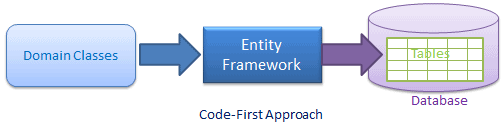
Entity Framework introduced Code-First approach from Entity Framework 4.1. Code-First is mainly useful in Domain Driven Design. With the Code-First approach, you can focus on the domain design and start creating classes as per your domain requirement rather than design your database first and then create the classes which match your database design. Code-First APIs will create the database on the fly based on your entity classes and configuration.


code-first in entity framework
As a developer, you first start by writing C# or VB.net classes and context class. When you run the application, Code First APIs will create the new database (if it does not exist yet) and map your classes with the database using default code-first conventions. You can also configure your domain classes to override default conventions to map with database tables using DataAnnotation attributes or fluent API.

The basic workflow would be:

Write application domain classes and context class→ configure domain classes for additional mapping requirements → Hit F5 to run the application → Code First API creates new database or map existing database with domain classes → Seed default/test data into the database → Finally launches the application

Friday, 15 April 2016

What is Node.js and Why to use it?

Node.js is a server side JavaScript environment for developing web applications like as ASP.NET, JSP, Php etc. It is an open-source and cross-platform framework based on Google's V8 JavaScript Engine.

Node.js was developed by Ryan Dahl and other developers working at Joyent. It was first released in 2009 supporting only Linux. In 2011, windows version was released.

It is used to build fast and scalable network applications as well as data-intensive real-time web applications. All versions of Node.js are starting from 0.1.0 releases to 0.1.x, 0.2.x, 0.3.x, 0.4.x, 0.5.x, 0.6.x, 0.7.x, 0.8.x, 0.9.x, 0.10.x, 0.11.x, and 0.12.x. Before merging of Node.js and io.js, it’s last versions was Node.js v0.12.9.

V8 JavaScript Engine


V8 is written in C++ language and implements ECMA Script (ES5). V8 is used in Google Chrome and can be run standalone or can be embedded into any C++ application.

V8 uses just-in-time compilation (JIT) to execute javascript code. V8 can run on Windows XP, Vista, Windows7+, Mac OS X 10.5+, and Linux OS. The first version of the V8 engine was released with the first version of Chrome on September 2, 2008.

According to Wikipedia, V8 compiles JavaScript to native machine code (IA-32, x86-64, ARM, or MIPS ISAs) before executing it, instead of more traditional techniques such as interpreting byte code or compiling the whole program to machine code and executing it from a file system.

Why Node.js?


As you know, JavaScript is an event-based language, so if you are using JavaScript at server side then anything happens on the server will trigger a non-blocking event. For example, each new connection request will fire an event, received data from a form will fire a data-received event, requested data from the database will fire data-requested event.

It means a Node.js site will never lock up and can support thousands of concurrent users. In this way Node.js plays the role of web server like Apache and IIS. Actually, Node.js allows you to process new requests without waiting for back-end services to respond.

Node.js is also great for mobile applications, which typically rely on an API server to service requests from thousands of devices at once.

Node.js Application Area


Node.js can be used to create following types of applications.

  1. E-Commerce Web Applications

  2. Social Media Applications

  3. Proxy Server

  4. Real-time Services

  5. Real-time data Applications like Multiplayer Games, Stock Trading, Chat App etc.

  6. Data Streaming Applications

  7. Network Applications

  8. High Concurrency Applications

  9. File Uploading Tools

  10. Process Monitoring Tools

  11. HTTP Web Server

Who use Node.js


  1. Walmart

  2. E-bay

  3. PayPal

  4. Microsoft

  5. LinkedIn

  6. Yahoo

  7. Google

  8. SAP

  9. IBM

  10. Strong Loop

  11. Dropbox

Node.js Platform Support


Node.js supports following platforms:

  1. Linux

  2. Windows

  3. Mac OS X

  4. SunOS

IDE for Node.js Development


  1. Visual Studio 2013, 2015 or higher

  2. Visual Studio Code

  3. Atom

  4. Node Eclipse

  5. WebStorm

  6. Sublime Text

Note


  1. Node.js is not a JavaScript library, but it is a platform to execute JavaScript on server side.

  2. Node app can not be deploy on your existing hosts like shared web hosting etc.

  3. You can use VPS and dedicated servers to install node and run your app.

  4. The easiest way to deploy your node app is to use a scalable service like Heroku, which is completely free and you only need to pay when you are using more resources.

What do you think?

I hope, now you have better understanding about Node.js. I would like to have feedback from my blog readers. Your valuable feedback, question, or comments about this article are always welcome.